
DPI To PPI Converter | Fast & Accurate Tool
Ever tried to print a gorgeous, crisp photo from your computer, only to have the print shop tell you the “DPI is too low,” or your software ask you about “PPI”? If you’ve ever felt like pulling your hair out trying to understand the difference, you’re not alone.
Designers, photographers, and hobbyists mix these two acronyms up all the time. But don’t worry—our DPI to PPI converter is here to do the heavy lifting for you. Let’s break down exactly what these terms mean without the confusing tech jargon, so you can get your images looking perfect whether they’re on a monitor or a canvas.
The Great Mix-Up: Why Are They So Confusing?
The reason DPI and PPI get used interchangeably is that, in the digital world, software programs (like Photoshop) often use the terms to mean the exact same thing. When you’re typing a number into an image resizer, a 1:1 conversion usually applies.
However, in the physical world, they are two completely different beasts. One lives purely on your glowing screens, and the other lives in the messy, wonderful world of physical ink and paper.
What is PPI (Pixels Per Inch)?
Think of your phone or computer monitor like a giant, glowing mosaic. PPI stands for Pixels Per Inch, and it tells you exactly how many little square digital tiles (pixels) are crammed into one inch of your screen.
The Real-World Analogy: Imagine you are building a mosaic out of square bathroom tiles. If you use big, clunky tiles, you can only fit a few into a one-inch space. The picture will look blocky, chunky, and pixelated. But if you use incredibly tiny tiles, you can pack hundreds of them into that same inch. The result? A smooth, detailed, stunning image. That’s high PPI at work.
What is DPI (Dots Per Inch)?
On the flip side, DPI stands for Dots Per Inch. This is exclusively a printing term. It has absolutely nothing to do with screens, glowing pixels, or digital files. It’s all about the hardware—specifically, your printer.
DPI measures how many microscopic droplets of physical ink a printer can spit onto a single inch of paper.
The Real-World Analogy: Think of a painter using the Pointillism technique (where a painting is made entirely of tiny dots). If the painter uses a fat brush and makes 10 big dots of paint per inch, the image looks rough. If they use a needle-thin brush and carefully place 300 tiny dots of paint in that same inch, the colors blend perfectly to the human eye.
How Our Converter Helps You
When you use our DPI to PPI converter, you are essentially translating the language of physical print requirements into the digital dimensions your computer understands.
If a print shop says, “We need this file to be 300 DPI,” what they are really saying is, “We need you to format your digital file to 300 PPI so our printer has enough digital data to spray 300 ink dots per inch.”
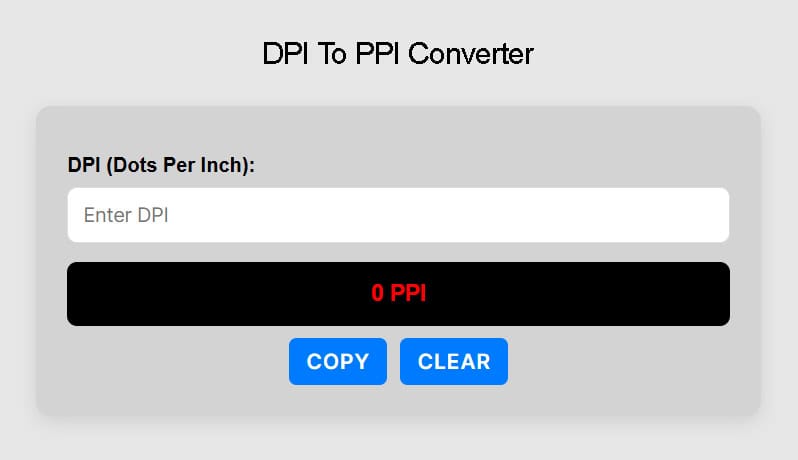
Just pop your numbers into the tool above, and we’ll handle the exact math to ensure your project comes out perfectly crisp.
Need to calculate things the other way around? Head over to our PPI to DPI converter to quickly swap from screen dimensions back to print specs!
DPI To PPI Conversion Table
This is a chart for most common DPI to PPI conversion results.
| DPI | PPI |
|---|---|
| 1 DPI | 1 PPI |
| 72 DPI | 72 PPI |
| 90 DPI | 90 PPI |
| 96 DPI | 96 PPI |
| 100 DPI | 100 PPI |
| 150 DPI | 150 PPI |
| 200 DPI | 200 PPI |
| 240 DPI | 240 PPI |
| 250 DPI | 250 PPI |
| 300 DPI | 300 PPI |
| 320 DPI | 320 PPI |
| 326 DPI | 326 PPI |
| 330 DPI | 330 PPI |
| 600 DPI | 600 PPI |
The DPI vs. PPI Cheat Sheet
In a rush? Here are the golden rules to remember:
- PPI is for Digital: It’s the number of digital squares (pixels) per inch on a screen.
- DPI is for Physical Print: It’s the number of physical ink drops per inch on a piece of paper.
- The Magic Number: 300 PPI is the industry standard for high-quality printing. If you want a photo to look perfect on paper, aim to set your digital file to 300 PPI.
- Screens are forgiving: Web images usually only need 72 PPI to 96 PPI to look great on a monitor.
- The Golden Rule: You can always scale down an image without losing quality, but you can’t scale up. (You can’t invent tiles or ink dots that aren’t there!).
Frequently Asked Questions (FAQ)
What is the main difference between DPI and PPI?
PPI stands for Pixels Per Inch and tells you how many digital squares, or pixels, are crammed into one inch of your screen. On the other hand, DPI stands for Dots Per Inch, which is exclusively a printing term that measures the number of microscopic droplets of physical ink a printer spits onto paper. Essentially, PPI lives purely on glowing digital screens, while DPI applies to the physical world of ink and paper.
What resolution do I need for a high-quality physical print?
The industry standard for high-quality printing is 300 PPI. If you want a photo to look perfect when printed on paper, you should aim to set your digital file to this specific resolution.
What resolution is best for images on websites or screens?
Screens are much more forgiving than physical prints. Web images typically only need a resolution of 72 PPI to 96 PPI to look great on a computer monitor.
Why does my print shop ask for “300 DPI” if it’s supposed to be PPI?
In the digital world, software programs often use the terms DPI and PPI interchangeably. Therefore, when a print shop requests a 300 DPI file, they are really asking you to format your digital file to 300 PPI. This ensures that their printer receives enough digital data to spray 300 physical ink dots per inch.
Can I just increase the PPI of a low-quality image to make it print better?
No, you cannot scale up an image without losing quality, because it is impossible to invent digital tiles or ink dots that aren’t already there in the original file. The golden rule for image resizing is that you can always scale an image down without any quality loss, but you cannot scale it up.