
Pixel to Percentage (%) Converter | Free CSS Layout Tool
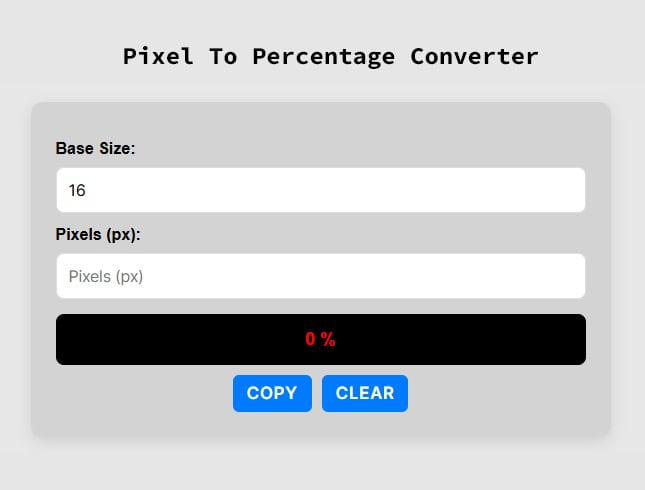
Looking for a quick way to convert pixels (px) to percentages (%) for your web design projects? Our free online Pixel to Percentage Converter instantly calculates the exact percentage value based on your container width or base font size.
Whether you are building a responsive layout, defining CSS widths, or adjusting fluid typography, simply enter your base value and pixel size into the tool below to get your result automatically.
Need to calculate the exact opposite? Check out our Percentage to Pixel Converter to quickly swap your relative units back to fixed pixels.
How Do You Convert Pixels to Percentages?
Converting fixed pixel values to relative percentages is a cornerstone of responsive web design. To convert px to %, you need to know the context—specifically, the base value (usually the parent container’s width or the root font size).
While you can use the automatic calculator above to save time, you can also calculate the conversion yourself using this standard web design formula:
Percentage (%) = (Target Pixel Size ÷ Base Size) × 100
Example Calculation:
Let’s say you have an element that is 6px wide, and it sits inside a parent container (or uses a base text size) of 16px.
-
Formula: (6 ÷ 16) × 100
-
Result: 37.5%
Why Use Percentages Instead of Pixels in CSS?
In modern web development, relying strictly on fixed pixels can limit your website’s usability. Using relative units like percentages (%), REM, or EM is highly recommended for two main reasons:
-
Responsive Layouts: Percentages allow structural elements, images, and columns to fluidly scale and adapt to any screen size, from mobile phones to large desktop monitors.
-
Accessibility: Defining dimensions or line heights in percentages ensures your content respects the custom zoom and display settings of the user’s browser.
Pixels to Percentage Conversion Chart (Base 16px)
Because most modern web browsers use a default root font size of 16px, we have compiled a quick reference guide. If you are designing with this standard 16px baseline, use this chart for fast CSS conversions:
| Pixel | Percentage |
|---|---|
| 1 px | 6.25 % |
| 2 px | 12.5 % |
| 3 px | 18.75 % |
| 4 px | 25 % |
| 5 px | 31.25 % |
| 6 px | 37.5 % |
| 7 px | 43.75 % |
| 8 px | 50 % |
| 9 px | 56.25 % |
| 10 px | 62.5 % |
| 11 px | 68.75 % |
| 12 px | 75 % |
| 13 px | 81.25 % |
| 14 px | 87.5 % |
| 15 px | 93.75 % |
| 16 px | 100 % |
| 17 px | 106.25 % |
| 18 px | 112.5 % |
| 19 px | 118.75 % |
| 20 px | 125 % |
| 21 px | 131.25 % |
| 22 px | 137.5 % |
| 23 px | 143.75 % |
| 24 px | 150 % |
| 25 px | 156.25 % |
Frequently Asked Questions (FAQs)
What is the “base value” in a px to % conversion?
The base value is the reference point for your mathematical calculation. For layout widths, the base is the total width of the parent container in pixels. For typography, it is typically the default font size of the browser or the parent element.
Is 100% always equal to 16px?
No. 100% only equals 16px if the base font size is strictly set to 16px. If your parent container is 800px wide, then a 100% width for a child element inside it would be 800px.
Why use percentages instead of pixels for images?
Using percentages (such as max-width: 100%;) ensures that images scale down proportionally to fit smaller screens, like mobile phones, without breaking the layout or causing horizontal scrolling. If you use fixed pixels, the image will remain that exact size regardless of the user’s device, which ruins the responsive experience.
What is the difference between percentages (%) and REM or EM units?
While all are relative CSS units, they reference different base values. Percentages are usually relative to the dimensions of the parent container (like width or height). EM units are relative to the font size of the parent element, and REM units are strictly relative to the root HTML font size. As a general rule, percentages are best for structural layouts and fluid grids, while REM and EM are ideal for typography, padding, and margins.
Are CSS percentages the same as Viewport Width (vw)?
No, they behave differently. A percentage (%) is relative to its immediate parent container. Viewport width (vw) is strictly relative to the size of the user’s browser window. For example, if an element is inside a 500px container, setting its width to 50% makes it 250px wide. However, setting it to 50vw will make it half the width of the entire screen, completely ignoring the parent container’s constraints.
How do I calculate the percentage for a responsive CSS grid layout?
To find the percentage for a column, divide the desired column width by the total container width and multiply by 100. For example, if you want a perfect 3-column layout without gaps, you divide 1 by 3, which equals 33.333%. You would then apply width: 33.333%; to each column.