
Image DPI Checker And Converter
Check the current DPI of your image and convert it for print by setting physical dimensions and print density. (Export as JPG to embed DPI metadata).
Need to check your image resolution or convert a file to a high-print standard like 300 DPI? Our free online DPI tool lets you analyze and change the Dots Per Inch (DPI) of your images instantly. No software installation, no registration, and absolutely no quality loss.
Whether you are prepping photos for high-quality printing, submitting a digital design, or optimization for the web, you can adjust your file specs in seconds.
Step-by-Step Guide
-
Upload your image: Drag and drop your image directly into the preview area.
-
Check the current DPI: The tool will automatically scan the file and display the Original DPI and Original Size above the canvas.
-
Adjust settings: Set your desired physical dimensions and target print density (e.g., 300 DPI for high-quality printing).
-
Choose your fit: Select how you want the image to fit the new dimensions (Fill & Crop, Fit Inside, or Stretch).
-
Export the file:
-
JPG: Choose this to inject the exact DPI metadata directly into the image file so printers can read it.
-
PNG: Choose this if you only need to resample the pixels to match the new size, as PNGs handle resolution data differently.
-
Key Features of Our DPI Converter
-
100% Free & Unlimited: Convert as many images as you need without hitting a paywall or daily limits.
-
Zero Quality Loss: We only modify the external orientation metadata of your image file. Your raw pixel data, colors, and visual layouts remain entirely unaltered.
-
Privacy & Security First: Your files are processed securely using automated cloud rendering. We do not store or view your private images, and all uploads are permanently purged from our servers within 15 minutes.
-
Multi-Format Support: Seamlessly process standard web formats including JPEG, PNG, WebP, BMP, and TIFF files.
Why Does DPI Matter?
DPI (Dots Per Inch) measures the print resolution of an image. It tells a physical printer how many droplets of ink to squeeze into one square inch of paper.
If your image’s DPI is too low, the printer has to stretch the available pixels across the page, resulting in a blurry, pixelated, or “blocky” print. If the DPI is set correctly, the printed image will look sharp, crisp, and professional.
While DPI doesn’t change how an image looks on a digital screen (screens rely on pixel dimensions), it is the most critical factor when moving a digital image into the physical world.
Standard DPI Guide: Which Setting Do You Need?
If you aren’t sure what to enter into the DPI converter, use this industry-standard guide:
| Target DPI | Best Use Case | Print Quality |
| 72 – 96 DPI | Websites, social media, and digital displays | Web standard (Not for print) |
| 150 DPI | Large format posters, banners, and basic home printing | Medium print |
| 300 DPI | Business cards, flyers, photo prints, and magazines | High-quality print (Industry standard) |
| 600+ DPI | Fine art prints, archival photography, and detailed line art | Ultra-high print |
DPI vs. PPI: What is the Difference?
These two terms are often used interchangeably, but they mean different things:
-
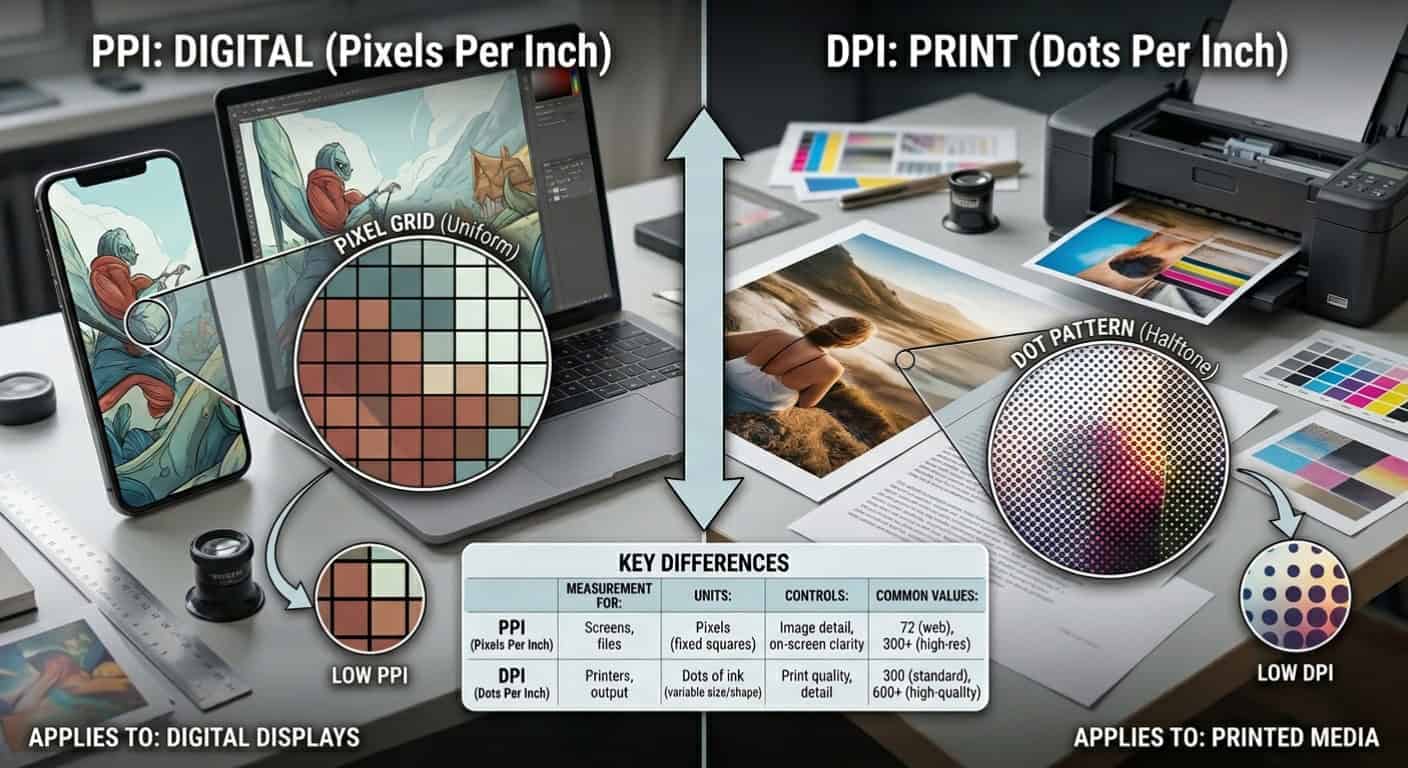
PPI (Pixels Per Inch): Refers to digital screens. It measures how many digital pixels are in one inch of your monitor or smartphone screen.
-
DPI (Dots Per Inch): Refers to physical printing. It measures how many physical dots of ink a printer places in one square inch of paper.
When print shops ask for a “300 DPI image,” they are asking for an image with enough pixel density (PPI) to safely print at 300 dots per inch without losing quality. Our converter bridges this gap by automatically calculating the pixel resampling needed for your target physical print size.
Frequently Asked Questions (FAQs)
How do I check the DPI of an image?
Simply drag and drop your image into the tool above. Our DPI checker instantly reads the hidden EXIF/metadata of your file and displays the original DPI and pixel size on the screen without requiring you to download any heavy software like Photoshop.
Can I convert a low-resolution image to 300 DPI?
Yes, you can use the tool to change the file’s metadata to 300 DPI. However, forcing a small image to stretch across a large physical print size at 300 DPI will require our tool to resample the pixels. While the DPI value will be correct for the printer, the image may lose sharpness if the original file was too small.
Does changing DPI affect file size?
If you are only changing the DPI metadata (the instruction to the printer) without changing the total pixel dimensions, the file size will remain largely the same. If you are increasing the physical print dimensions along with the DPI, the tool will generate more pixels, resulting in a larger file size.
Why did my PNG not save the DPI metadata?
The PNG format handles resolution data differently than JPGs and doesn’t store standard EXIF DPI tags in the same way. If you need to submit a file to a print shop that specifically requires a readable 300 DPI metadata tag, select the JPG (Injects DPI Metadata) option when exporting from our converter.