
Pixels To Cm For Printing
Ever tried to print a gorgeous digital photo, only to have it come out looking like a blurry, blocky mess? Or maybe you’re designing a poster and staring at your screen, wondering exactly how big “1920×1080 pixels” actually is on a physical piece of paper.
You’re definitely not alone! Translating the exact size of your digital art into the real world can be a headache. That’s exactly why we built this free, fast, and highly accurate pixels to cm converter for printing.
Using this converter you can convert pixels to centimeter quickly and save time.
How to Use Our Pixels to CM Converter
Skip the math! We’ve made this tool as foolproof as possible so you can get back to creating.
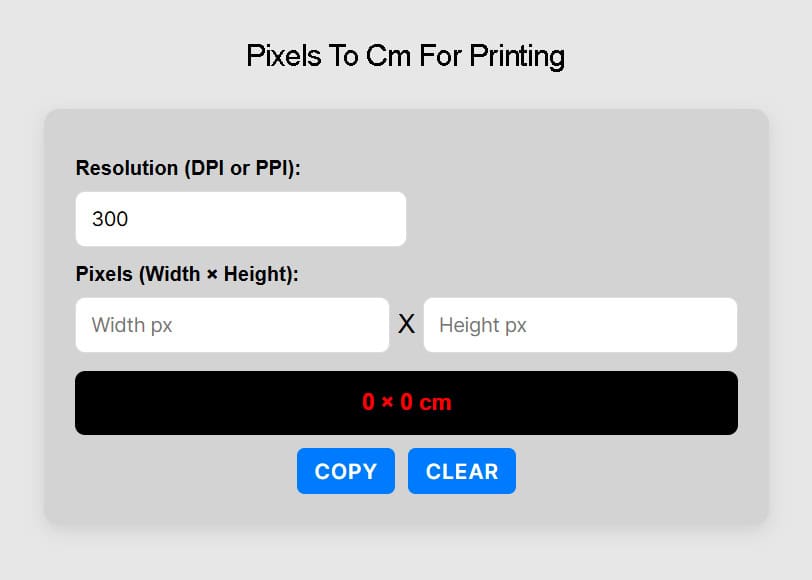
- Enter your Resolution (DPI/PPI): Check your image or printer settings. For crisp, standard prints, 300 is usually the magic number.
- Pop in your Pixels: Type in the width and height of your image.
- Instantly see your dimensions in exact centimeters!
Note: Are you working with a US-based printer or just prefer imperial measurements? No problem. Head over to our Pixels to Inches Converter for Printing instead.
The Secret Sauce: Why DPI Matters
Think of your digital image as a giant mosaic made of tiny square colored tiles—those are your pixels. When you go to print that image, you have to decide how tightly to pack those tiles together. This is where DPI (Dots Per Inch) or PPI (Pixels Per Inch) comes in.
- High DPI (e.g., 300 DPI): If you pack the tiles tightly together, your image will look incredibly sharp and detailed, but the overall physical size will be smaller. This is the golden standard for professional, high-quality printing.
- Low DPI (e.g., 72 or 150 DPI): If you spread those tiles out, your printed image will be physically larger, but it might look fuzzy, pixelated, or “blocky.”
(Curious about the deeper tech details? Wikipedia has a great breakdown on how Dots Per Inch (DPI) actually works in the printing world.)
The Manual Math (For the DIYers)
If you’re someone who likes knowing the formula behind the magic, here is how the calculation actually works behind the scenes. Because one inch equals exactly 2.54 centimeters, the formula to convert pixels to cm looks like this:
- Width in cm = Width in pixels × (2.54 ÷ Resolution)
- Height in cm = Height in pixels × (2.54 ÷ Resolution)
Sure, you could bust out the calculator every time you want to print something, but our online tool saves you the hassle, does the heavy lifting instantly, and prevents expensive printing mistakes!
Pixels (px) to centimeters (cm) conversion table
Need a fast reference? We’ve put together this handy cheat sheet showing some of the most common pixel dimensions and what they translate to in the real world. We’ve included sizes for both everyday printing (150 DPI) and pro-level quality (300 DPI).
| Pixels | Centimeters at 150 DPI | Centimeters at 300 DPI |
|---|---|---|
| 1920x1080 Pixels | 32.51x18.29 cm | 16.26x9.14 cm |
| 413x177 Pixels | 6.99x3 cm | 3.5x1.5 cm |
| 472x472 Pixels | 7.99x7.99 cm | 4x4 cm |
| 800x800 Pixels | 13.55x13.55 cm | 6.77x6.77 cm |
| 1024x768 Pixels | 17.34x13 cm | 8.67x6.5 cm |
| 150x200 Pixels | 2.54x3.39 cm | 1.27x1.69 cm |
| 1200x1200 Pixels | 20.32x20.32 cm | 10.16x10.16 cm |
| 851x315 Pixels | 14.41x5.33 cm | 7.21x2.67 cm |
| 140x60 Pixels | 2.37x1.02 cm | 1.19x0.51 cm |
| 6000x4000 Pixels | 101.6x67.73 cm | 50.8x33.87 cm |
| 1200x628 Pixels | 20.32x10.63 cm | 10.16x5.32 cm |
| 1200x1600 Pixels | 20.32x27.09 cm | 10.16x13.55 cm |
| 600x800 Pixels | 10.16x13.55 cm | 5.08x6.77 cm |
| 3024x4032 Pixels | 51.21x68.28 cm | 25.6x34.14 cm |
| 1080x1920 Pixels | 18.29x32.51 cm | 9.14x16.26 cm |
| 1200x1800 Pixels | 20.32x30.48 cm | 10.16x15.24 cm |
| 1280x720 Pixels | 21.67x12.19 cm | 10.84x6.1 cm |
| 300x300 Pixels | 5.08x5.08 cm | 2.54x2.54 cm |
Frequently Asked Questions (FAQs)
How many pixels are in exactly 1 centimeter?
There actually isn’t one magic number, because it completely depends on your DPI (how tightly those pixel “tiles” are packed together). However, if you are printing at a high-quality standard of 300 DPI, 1 cm equals exactly 118.11 pixels. If you are talking about standard web or screen resolution (72 DPI), 1 cm is only about 28.35 pixels.
What DPI should I use for a high-quality print?
For crisp, professional-looking photos, flyers, or art prints, 300 DPI is the golden rule. If you are printing a massive banner or a poster that people will be looking at from across the room, you can usually get away with 150 DPI or even lower, since the human eye can’t see the tiny details from a distance anyway.
Why does my image look huge on my computer screen, but tiny when I print it?
This is the most common printing frustration! Computer monitors pack fewer pixels into an inch (usually around 72 to 109 PPI) compared to printers. So, an image that comfortably fills your entire laptop screen might only be a few centimeters wide when squeezed together for a high-quality 300 DPI print. That’s exactly why checking your sizes with a converter before you print is a lifesaver.
Can I just stretch my small image to print at a larger centimeter size?
You can try, but there is a catch! If you stretch an image with very few pixels to fit a large physical size (like a poster), your printer has to basically “guess” what colors to put in the empty spaces. This is what causes prints to look blurry, pixelated, or like a 90s video game. For a large, clear print, you always need to start with a high-resolution image.
Do I need to worry about PPI or DPI? Are they the same thing?
For the sake of printing, you can treat them as the same thing. Technically, PPI (Pixels Per Inch) refers to digital screens, and DPI (Dots Per Inch) refers to physical ink dots on a piece of paper. But in everyday conversation and most design software, people use the terms interchangeably.