
Resolution To PPI Converter | Instant & Accurate
Ever looked at the spec sheet for a new phone, tablet, or monitor and felt like you needed a computer science degree to understand it? You see numbers like “1080p,” “4K,” and a mysterious little acronym called “PPI.”
If you’re wondering how sharp your display will actually look in real life, you are in the right place. Our Resolution to PPI Converter does the heavy lifting for you, but let us break down what these numbers actually mean without the confusing jargon.
How to Use Our Resolution to PPI Converter
Why reach for a calculator when our tool can do it for you in seconds? Here is how to use it:
- Find your resolution: Enter your screen’s width and height in pixels (e.g., 1920 for width, 1080 for height).
- Measure the screen: Enter your screen’s diagonal size in inches (like 6.1 for a phone, or 27 for a monitor).
- Hit convert! We will instantly give you the exact pixel density of your device.
What Even Is PPI (Pixels Per Inch)?
In simple terms, Pixels Per Inch (PPI) tells you how tightly packed the tiny dots of color (pixels) are on your screen. The higher the number, the sharper and crisper your image will look.
Think of it like spreading butter on toast:
Imagine you have a single tablespoon of butter (your pixels). If you spread it on a small cracker (a smartphone screen), you get a nice, thick, delicious layer. But if you try to spread that exact same tablespoon of butter over a massive slice of sourdough bread (a giant TV screen), it is going to be spread terribly thin.
This is exactly why a 1080p resolution looks incredibly sharp on a 6-inch smartphone, but that exact same 1080p resolution on a 50-inch TV looks blurry and pixelated when you stand close to it. The “butter” is spread too thin!
Making Sense of Display Resolution
Before calculating PPI, you need to understand display resolution.
Resolution is simply the total number of pixels your screen can display, usually written as Width x Height. For example, a standard Full HD monitor has a resolution of 1920 x 1080. This means there are 1,920 pixels lined up horizontally and 1,080 pixels stacked vertically. Multiply those together, and you have over 2 million pixels making up your screen!
The Math Behind the Magic (Calculating PPI Manually)
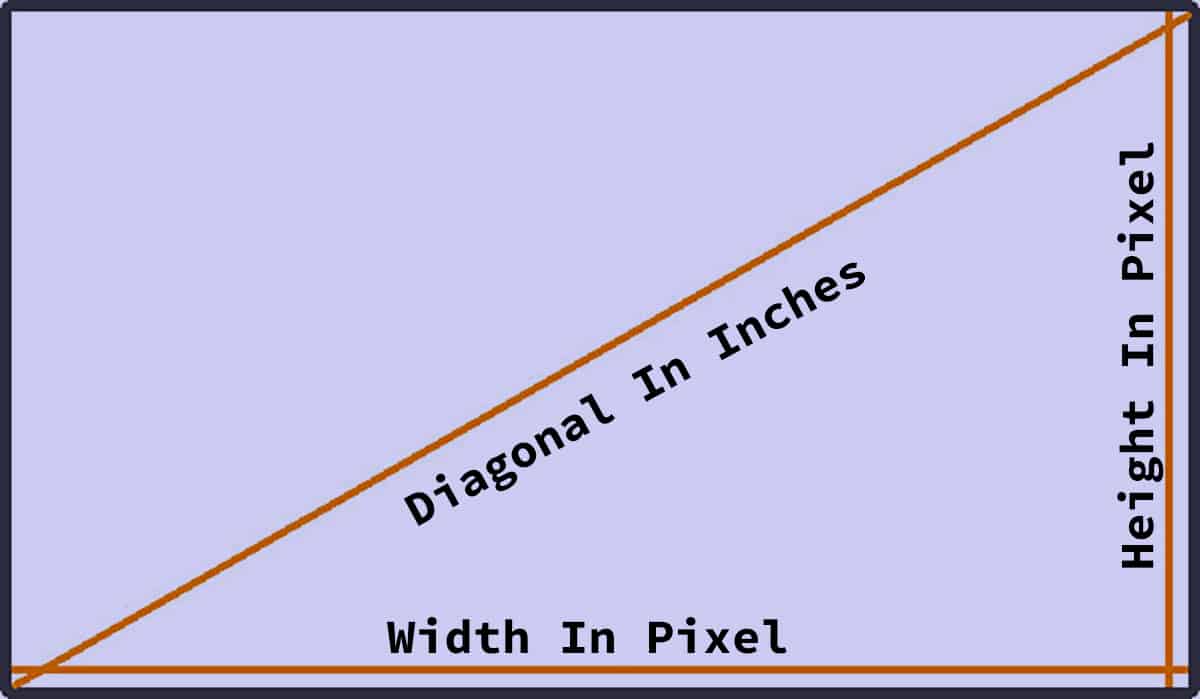
Want to know what the calculator is actually doing behind the scenes? It all comes down to a little high school geometry (specifically, the Pythagorean theorem).
If you are feeling brave and want to calculate it yourself, here is the two-step formula:
Step 1: Find the diagonal resolution in pixels.
You do this by squaring the width, squaring the height, adding them together, and finding the square root.
Diagonal In Pixels = √(width² + height²)
Step 2: Divide by the physical screen size.
Take that number you just found and divide it by the physical diagonal size of your screen in inches.
PPI = Diagonal In Pixels / Diagonal In Inches
Or… you could just scroll up and use our converter!
Resolution To PPI Conversion Chart:
a tables for common resolution to pixels per inch (ppi) conversion results.
| Resolution (Pixels) | Diagonal (Inches) | PPI |
|---|---|---|
| 272 X 340 | 1.337 | 325.66 |
| 312 X 390 | 1.534 | 325.58 |
| 368 X 448 | 1.757 | 329.97 |
| 480 X 320 | 3.5 | 164.83 |
| 720 X 720 | 3.1 | 328.46 |
| 800 X 240 | 3.53 | 236.61 |
| 800 X 480 | 3 | 310.98 |
| 800 X 600 | 6 | 166.67 |
| 854 X 480 | 3.7 | 264.77 |
| 960 X 544 | 5 | 220.68 |
| 960 X 640 | 3.5 | 329.65 |
| 1024 X 600 | 5.6 | 211.93 |
| 1024 X 600 | 10.1 | 117.51 |
| 1024 X 768 | 6.4 | 200 |
| 1024 X 768 | 8.1 | 158.02 |
| 1136 X 640 | 4 | 325.97 |
| 1280 X 720 | 4.3 | 341.54 |
| 1280 X 720 | 6.2 | 236.87 |
| 1280 X 800 | 5.3 | 284.8 |
| 1280 X 800 | 7 | 215.63 |
| 1280 X 800 | 12 | 125.79 |
| 1280 X 800 | 13.3 | 113.49 |
| 1200 X 825 | 9.7 | 150.13 |
| 1200 X 900 | 7.5 | 200 |
| 1280 X 1024 | 0.61 | 2687.21 |
| 1334 X 750 | 4.7 | 325.61 |
| 1360 X 768 | 11.1 | 140.71 |
| 1360 X 768 | 11.6 | 135.09 |
| 1360 X 768 | 15.6 | 100.45 |
| 1400 X 1050 | 12 | 145.83 |
| 1440 X 900 | 13.3 | 127.68 |
| 1440 X 900 | 19 | 89.37 |
| 1440 X 960 | 15.2 | 113.86 |
| 1440 X 1440 | 4.5 | 452.55 |
| 1600 X 768 | 8 | 221.85 |
| 1600 X 900 | 13.1 | 140.13 |
| 1600 X 900 | 17.3 | 106.11 |
| 1620 X 1080 | 4.5 | 432.67 |
| 1680 X 945 | 18.4 | 104.76 |
| 1680 X 1050 | 15.4 | 128.65 |
| Resolution (Pixels) | Diagonal (Inches) | PPI |
|---|---|---|
| 1792 X 768 | 14.4 | 135.39 |
| 1792 X 828 | 6.1 | 323.61 |
| 1872 X 1404 | 10.3 | 227.18 |
| 1920 X 1080 | 0.74 | 2976.9 |
| 1920 X 1080 | 4.7 | 468.7 |
| 1920 X 1080 | 5.5 | 400.53 |
| 1920 X 1080 | 5.7 | 386.47 |
| 1920 X 1080 | 11.6 | 189.91 |
| 1920 X 1152 | 10.1 | 221.69 |
| 1920 X 1200 | 7 | 323.45 |
| 1920 X 1200 | 10.1 | 224.17 |
| 1920 X 1200 | 15.4 | 147.02 |
| 1920 X 1200 | 24 | 94.34 |
| 1920 X 1920 | 26.5 | 102.46 |
| 2040 X 1080 | 6.4 | 360.66 |
| 2048 X 1152 | 23 | 102.16 |
| 2048 X 1536 | 0.83 | 3084.34 |
| 2048 X 1536 | 7.9 | 324.05 |
| 2048 X 1536 | 9.7 | 263.92 |
| 2048 X 1536 | 15 | 170.67 |
| 2048 X 1536 | 20.8 | 123.08 |
| 2048 X 2048 | 0.99 | 2925.57 |
| 2160 X 1080 | 5.5 | 439.08 |
| 2200 X 1650 | 13.3 | 206.77 |
| 2224 X 1080 | 5.84 | 423.35 |
| 2224 X 1668 | 10.5 | 264.76 |
| 2304 X 1440 | 12 | 226.42 |
| 2360 X 1640 | 10.9 | 263.66 |
| 2388 X 1668 | 11 | 264.81 |
| 2400 X 1600 | 12.3 | 234.51 |
| 2436 X 1125 | 5.8 | 462.63 |
| 2532 X 1170 | 6.1 | 457.25 |
| 2560 X 1080 | 25 | 111.14 |
| 2560 X 1312 | 5.71 | 503.79 |
| 2560 X 1440 | 5.1 | 575.92 |
| 2560 X 1440 | 11.6 | 253.21 |
| 2560 X 1440 | 27 | 108.79 |
| 2560 X 1536 | 5.5 | 542.81 |
| 2560 X 1600 | 5.6 | 539.08 |
| 2560 X 1600 | 8.9 | 339.2 |
| Resolution (Pixels) | Diagonal (Inches) | PPI |
|---|---|---|
| 2560 X 1600 | 10.055 | 300.24 |
| 2560 X 1600 | 13.3 | 226.98 |
| 2560 X 1700 | 12.85 | 239.15 |
| 2560 X 1600 | 30 | 100.63 |
| 2560 X 1800 | 10.2 | 306.81 |
| 2560 X 2048 | 20.1 | 163.1 |
| 2688 X 1242 | 6.5 | 455.55 |
| 2732 X 2048 | 12.9 | 264.68 |
| 2736 X 1824 | 12.3 | 267.34 |
| 2778 X 1284 | 6.7 | 456.77 |
| 2880 X 1440 | 5.7 | 564.9 |
| 2880 X 1620 | 15.6 | 211.82 |
| 2880 X 1800 | 15.4 | 220.53 |
| 2960 X 1440 | 5.8 | 567.53 |
| 2960 X 1440 | 6.2 | 530.92 |
| 3000 X 2000 | 13.5 | 267.08 |
| 3040 X 1440 | 6.1 | 551.44 |
| 3040 X 1440 | 6.4 | 525.59 |
| 3072 X 1920 | 16 | 226.42 |
| 3120 X 1440 | 6.1 | 563.32 |
| 3200 X 1440 | 6.8 | 516.04 |
| 3200 X 1800 | 13.3 | 276.05 |
| 3240 X 2160 | 15 | 259.6 |
| 3280 X 2048 | 30 | 128.9 |
| 3440 X 1440 | 29 | 128.59 |
| 3840 X 1600 | 37.5 | 110.93 |
| 3840 X 2160 | 5.5 | 801.06 |
| 3840 X 2160 | 13.3 | 331.26 |
| 3840 X 2160 | 23.6 | 186.69 |
| 3840 X 2160 | 28 | 157.35 |
| 3840 X 2160 | 31.5 | 139.87 |
| 3840 X 2400 | 22.2 | 203.98 |
| 3840 X 2560 | 20 | 230.76 |
| 4096 X 2160 | 31 | 149.38 |
| 4096 X 2160 | 36.4 | 127.22 |
| 4096 X 2304 | 21.5 | 218.58 |
| 4480 X 2520 | 23.5 | 218.73 |
| 5120 X 1440 | 49 | 108.54 |
| 5120 X 2160 | 34 | 163.44 |
| 5120 X 2880 | 27 | 217.57 |
Frequently Asked Questions (FAQ)
What is the difference between PPI and DPI?
This is probably the most common mix-up! PPI (Pixels Per Inch) is strictly for digital screens—it is about the glowing squares of light on your phone or monitor. DPI (Dots Per Inch) is for the physical printing world. It measures how many tiny dots of ink a printer spits onto a piece of paper. If you are buying a monitor, look at PPI. If you are printing a photograph, look at DPI.
Is a higher PPI always better?
Yes and no! Up to a certain point, a higher PPI makes everything look incredibly crisp and lifelike. But there is a catch: pushing more pixels requires more processing power. On a smartphone or laptop, an insanely high PPI will drain your battery much faster. Plus, once you pass a certain pixel density, your eyes literally cannot see the difference anyway. Speaking of which…
Can the human eye even see past 300 PPI?
It all depends on how far away the screen is from your face. When Steve Jobs introduced the “Retina Display” for the iPhone, he noted that at a normal viewing distance (about 10 to 12 inches from your eyes), the magic number is around 300 PPI. Past that point, the individual pixels disappear into a smooth, continuous image. However, if you are holding a VR headset an inch from your eyeballs, you need a much, much higher PPI to keep things from looking blurry!
What is a “good” PPI for a gaming monitor?
For PC gamers, the golden sweet spot right now is around 110 PPI. You usually get this by pairing a 27-inch monitor with a 1440p resolution. Why? Because it gives you a beautifully sharp image without forcing your graphics card to work quite as hard as it would for a 4K monitor. It is the perfect balance between great visuals and buttery-smooth frame rates.
Does changing my screen resolution in settings change my PPI?
Nope! Your PPI is a physical hardware limit—it is physically built into your screen at the factory. If you have a 4K monitor but change your computer settings to display at 1080p, the physical pixels don’t get any bigger. Your computer simply groups the existing pixels together to mimic a lower resolution. Your maximum PPI remains exactly the same!