
Pixels To Inches For Printing
Welcome to the ultimate Pixels to Inches for Printing Converter. If you are preparing digital artwork, photographs, or graphics for professional printing, understanding the relationship between digital pixels and physical dimensions is crucial.
You can use this free online converter to instantly calculate the exact physical size of your image in inches, ensuring your prints come out in high resolution and perfectly sized.
How to Use the Pixels to Inches Converter
Using our conversion tool is fast and straightforward. Follow these simple steps to find your printing dimensions:
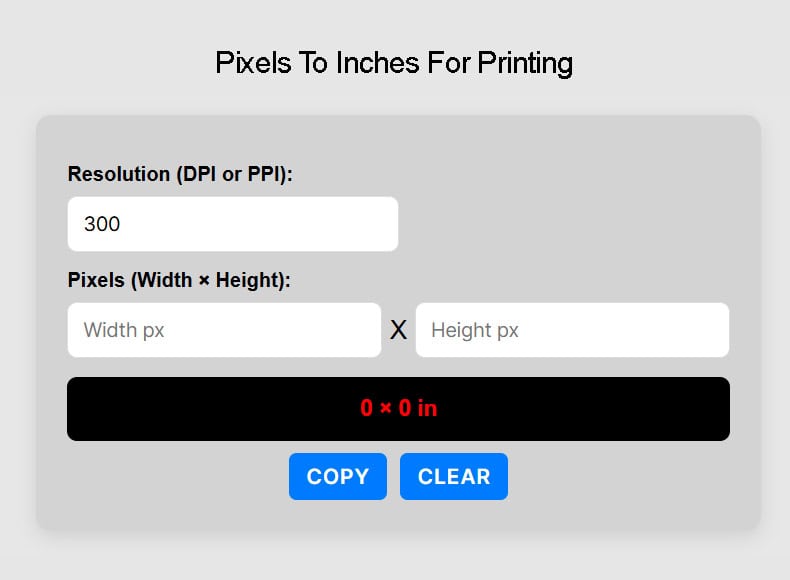
Step 1: Resolution
Enter your target resolution value (DPI or PPI). For high-quality prints, 300 is the industry standard.
Step 2: Pixels
Input the specific dimensions of your digital image in pixels (Width and Height).
Understanding DPI and Pixel Density
To get the best possible results when converting digital images to physical prints, it helps to understand two critical concepts: DPI and Pixel Density.
When you send an image to a printer, the printer deposits tiny dots of ink to recreate your digital image on paper. This is measured in DPI, or Dots per inch. A higher DPI means the printer uses more dots within every inch of the paper, resulting in a sharper, more detailed, and higher-quality print. The standard for professional printing is typically 300 DPI.
Similarly, digital screens display images using pixels. The concept of Pixel density (often referred to as PPI, or Pixels Per Inch) measures how closely packed these pixels are on a digital display. While PPI dictates how sharp an image looks on your screen, DPI determines how sharp it will look once physically printed. Our converter effortlessly bridges the gap between the two!
How to Convert Pixels to Inches Manually
While the best and most accurate way to convert pixels to inches for printing is by using our online converter above, you can also calculate the dimensions manually using a simple conversion formula.
Here is the math behind the conversion:
Width:
Width in Inches = Width in Pixels / Resolution
Example: 1200 Pixels / 300 = 4 Inches
Height:
Height in Inches = Height in Pixels / Resolution
Example: 1500 Pixels / 300 = 5 Inches
Pixels to Inches Conversion Chart
For quick reference, we have compiled a table showing the most common pixel dimensions and their corresponding physical print sizes in inches at both 150 DPI (standard quality) and 300 DPI (high quality).
| Pixels | Inches at 150 DPI | Inches at 300 DPI |
|---|---|---|
| 1920x1080 Pixels | 12.8x7.2 Inches | 6.4x3.6 Inches |
| 1200x628 Pixels | 8x4.19 Inches | 4x2.09 Inches |
| 600x600 Pixels | 4x4 Inches | 2x2 Inches |
| 1360x768 Pixels | 9.07x5.12 Inches | 4.53x2.56 Inches |
| 450x450 Pixels | 3x3 Inches | 1.5x1.5 Inches |
| 1280x720 Pixels | 8.53x4.8 Inches | 4.27x2.4 Inches |
| 400x300 Pixels | 2.67x2 Inches | 1.33x1 Inches |
| 1500x2100 Pixels | 10x14 Inches | 5x7 Inches |
| 3000x2400 Pixels | 20x16 Inches | 10x8 Inches |
| 1400x1400 Pixels | 9.33x9.33 Inches | 4.67x4.67 Inches |
| 1000x1000 Pixels | 6.67x6.67 Inches | 3.33x3.33 Inches |
| 1200x1600 Pixels | 8x10.67 Inches | 4x5.33 Inches |
| 820x312 Pixels | 5.47x2.08 Inches | 2.73x1.04 Inches |
| 6000x4000 Pixels | 40x26.67 Inches | 20x13.33 Inches |
| 360x360 Pixels | 2.4x2.4 Inches | 1.2x1.2 Inches |
| 2048x1152 Pixels | 13.65x7.68 Inches | 6.83x3.84 Inches |
| 1200 X 1500 Pixels | 8x10 Inches | 4x5 Inches |
| 1410x2250 Pixels | 9.4x15 Inches | 4.7x7.5 Inches |
| 3000x2400 Pixels | 20x16 Inches | 10x8 Inches |
| 1920x1200 Pixels | 12.8x8 Inches | 6.4x4 Inches |
| 1080x1920 Pixels | 7.2x12.8 Inches | 3.6x6.4 Inches |
| 1280x800 Pixels | 8.53x5.33 Inches | 4.27x2.67 Inches |
| 800x200 Pixels | 5.33x1.33 Inches | 2.67x0.67 Inches |
| 800x800 Pixels | 5.33x5.33 Inches | 2.67x2.67 Inches |
| 1024x768 Pixels | 6.83x5.12 Inches | 3.41x2.56 Inches |
| 1200x628 Pixels | 8x4.19 Inches | 4x2.09 Inches |
| 800x600 Pixels | 5.33x4 Inches | 2.67x2 Inches |
| 4000x4000 Pixels | 26.67x26.67 Inches | 13.33x13.33 Inches |
| 2560x1600 Pixels | 17.07x10.67 Inches | 8.53x5.33 Inches |
| 4608x3456 Pixels | 30.72x23.04 Inches | 15.36x11.52 Inches |
| 800x1200 Pixels | 5.33x8 Inches | 2.67x4 Inches |
| 2160x1080 Pixels | 14.4x7.2 Inches | 7.2x3.6 Inches |
| 350x467 Pixels | 2.33x3.11 Inches | 1.17x1.56 Inches |
| 1080x1080 Pixels | 7.2x7.2 Inches | 3.6x3.6 Inches |
| 1600x900 Pixels | 10.67x6 Inches | 5.33x3 Inches |
| 1440x720 Pixels | 9.6x4.8 Inches | 4.8x2.4 Inches |
| 1600x400 Pixels | 10.67x2.67 Inches | 5.33x1.33 Inches |
| 200x200 Pixels | 1.33x1.33 Inches | 0.67x0.67 Inches |
| 1800x1200 Pixels | 12x8 Inches | 6x4 Inches |
Frequently Asked Questions (FAQ)
What is the best DPI for high-quality printing?
For professional, high-quality photographic and document printing, the industry standard is 300 DPI (Dots Per Inch). This ensures the print is crisp and detailed. For larger formats like banners or posters viewed from a distance, 150 DPI is often sufficient.
How many pixels do I need for an 8×10 inch print?
To get a high-quality 8×10 inch print at 300 DPI, your image needs to be 2400 x 3000 pixels. You can calculate this by multiplying the inches by the DPI (8 * 300 = 2400, and 10 * 300 = 3000).
Can I just increase the pixels to make a small image print larger?
While you can artificially increase the pixel count of an image using software, it usually will not improve the actual print quality. Expanding a small image forces the software to guess the missing details, which often results in a blurry or pixelated physical print.
What is the difference between PPI and DPI?
PPI (Pixels Per Inch) refers to the digital resolution of an image displayed on a screen. DPI (Dots Per Inch) refers to the physical ink dots a printer produces on paper. While they are technically different, they are often used interchangeably when discussing print size conversions.
Why does my printed image look smaller than it did on my screen?
Screens typically display images at a much lower pixel density (often around 72 to 96 PPI) compared to high-quality printers (300 DPI). If you print an image without adjusting its physical print dimensions, the printer packs those pixels much closer together, resulting in a smaller physical size.